Controls & Navigation (9)
Clicking the Task button displays the first or next task from the indextasks.txt list on the whiteboard.
After loading the task from the web, information about the source will be displayed. The exact location of the source is listed in the indextasks.txt file.

You can download the task by clicking the download icon. The task will be downloaded into the Download folder in the Palgrap installation path.
Press the Task button again to either turn off the projector or load the next task.
The control panel will appear as soon as you start an experiment.
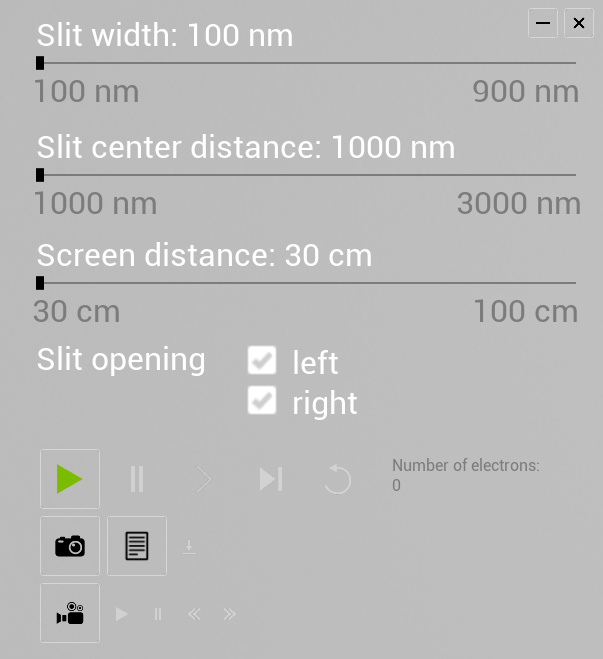
You can minimize it by clicking the Minimize button. 
Afterwards, you will find the control symbol on the top left edge of the screen.
When you click on the control icon, the control panel reappears.
Clicking the Film button loads either the first video or the next video from the indexvideos.txt list and activates the Play button.
After loading the film from the web, information about the source is displayed. The exact streaming source is listed in the indexvideos.txt file.

Pressing the Start button begins playback and provides additional controls for pausing, fast-forwarding, and rewind.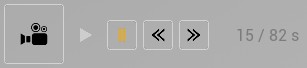
Press the Film button again to turn off the projector or load the next film.
You can download the current results of your experiment by clicking on the download icon. 
The generated PDF document will be downloaded to the download folder in the Palgrap installation path.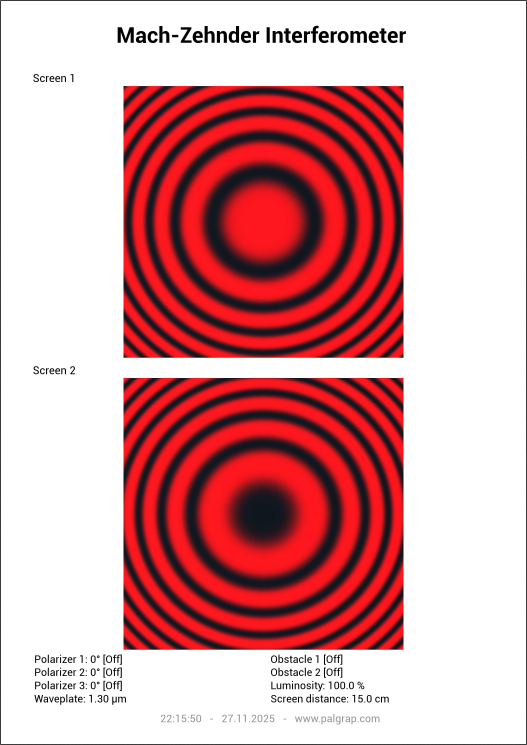
You can start an experiment using the Monitor Menu.
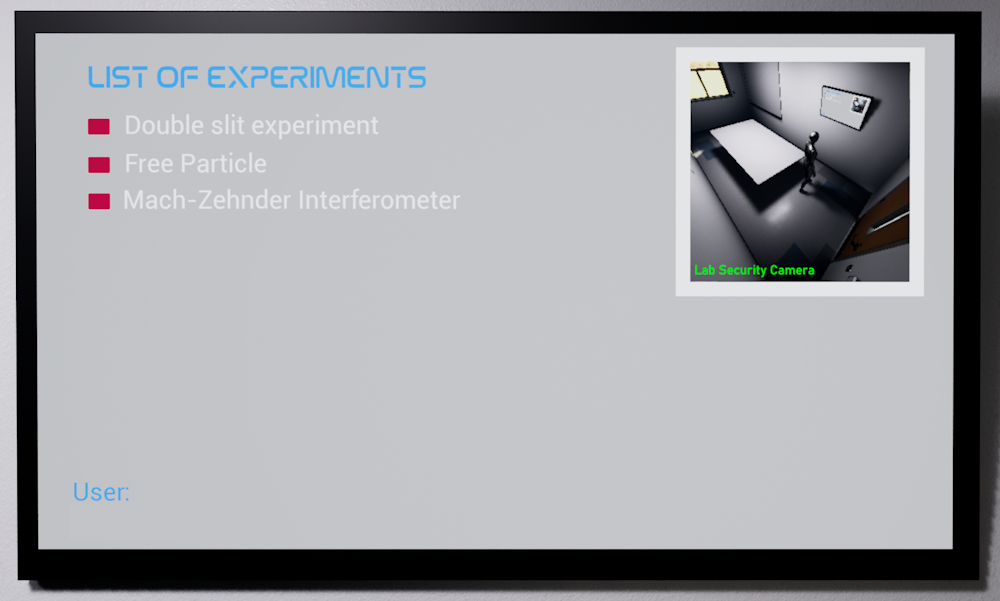
After selecting an experiment, the corresponding Control Panel will open automatically.
To stop the experiment, press the close button × on the Control Panel. Once the experiment is closed, the Monitor Menu becomes available again and you can select a new experiment.
 Start the simulation
 Pauses the simulation
 Accelerates the simulation
 Completes the simulation
 Resets the simulation
The buttons are activated or deactivated depending on the status of the simulation.
Use the W, A, S, D keys to move around the room. To look around or rotate your view, hold down a mouse button and move the mouse. This gives you smooth, intuitive control as you explore the space.
To open the menu, simply press the Esc key or the M key.
To switch between first-person, body cam, and third-person modes, press the C key. You can also rotate the camera around your character by moving the mouse while holding down any mouse button.
Custom Content (5)
You can also integrate your own content, such as worksheets and videos, which are tailored specifically to each experiment. All you need is access to a directory on a website. For each experiment, you can create two index files: one for the task list (PDF) and one for the video list (MP4). Within these files, you can reference content from either the same directory or external web sources.
To update the six preset radio stations, you need to modify the radiostations.txt file located in the items/radio/ directory.
The full path is: https://yourbaseurl/items/radio/radiostations.txt
Each radio station is described line by line with:
– A direct link to the desired web stream
– Followed by an 12-character station label (used for display)
To customize the radio stations to your own preferences, you can find a wide range of streams on this site: https://fmstream.org/
Example:
#PGINDEXFILE
https://rf-live.ors-shoutcast.at/oe1-q2a
# ORF Oe1   AT
https://streaming.live365.com/a49833
# KJazz881 USA
https://liveradio.swr.de/sw890cl/swr1rp/
# SWR1 RP  DEU
http://radionz-ice.streamguys.com/international_aac64
# RNZPacificNZ
https://jking.cdnstream1.com/b22139_128mp3
# 101SmoothJGB
http://playerservices.streamtheworld.com/api/livestream-redirect/GOLD905AAC.aac
# Gold 905  SG
To make your custom content available to the program, you’ll need to host it on either an intranet or the internet. In PALGRAP, you can configure the content location by updating the Media Source URL under Customization.
By default, the system uses: https://www.palgrap.com/palgrap
You can replace this with your own URL. Just make sure your directory follows this required structure:
/experiments/doubleslit/experiments/freeparticle/experiments/machzehnder
Within each of these directories, you can store relevant .mp4 video files or .pdf documents. Since PALGRAP does not have permission to automatically read the contents of these folders, you need to manually list the available files in two index files:
indexvideos.txt– for video filesindextasks.txt– for task or document files
This indexing approach also allows you to link to freely available external resources, giving you flexibility in how and where your content is hosted.
The indextasks.txt file contains a list of task entries, each on a separate line. Every entry consists of a reference to an .pdf file – either a local filename or a full external URL – followed by a description. Each description line begins with a # symbol. This description will later be displayed in PALGRAP when the corresponding task is accessed.
Example:#PGINDEXFILE
palgrap_doubleslit_eng_no1.pdf
# Determine screen width (www.palgrap.com)
https://www.milq.info/data/_uploaded/image/arbeitsblaetter/AB5_grundprinzip3.pdf
# Drittes Grundprinzip der Quantentheorie (www.milq.info - TU Braunschweig)
Using spaces in file names may cause errors.
Here are the index files for the experiments included so far:
https://www.palgrap.com/palgrap/experiments/doubleslit/indextasks.txt
https://www.palgrap.com/palgrap/experiments/freeparticle/indextasks.txt
https://www.palgrap.com/palgrap/experiments/machzehnder/indextasks.txt
The indexvideos.txt file contains a list of video entries, each on a separate line. Every entry consists of a reference to an .mp4 file – either a local filename or a full external URL – followed by a description. Each description line begins with a # symbol. This description will later be displayed in PALGRAP when the corresponding video is accessed.
Example:#PGINDEXFILE
palgrap_doubleslit_eng_720p.mp4
# Douple Slit Experiment (www.palgrap.com)
https://mediandr-a.akamaihd.net/progressive/2025/0731/TV-20250731-1954-2200.hd.mp4
# 100 Jahre Quantenmechanik: Wissenschaft made in Goettingen (www.ndr.de)
Using spaces in file names may cause errors.
Here are the index files for the experiments included so far:
https://www.palgrap.com/palgrap/experiments/doubleslit/indexvideos.txt
https://www.palgrap.com/palgrap/experiments/freeparticle/indexvideos.txt
https://www.palgrap.com/palgrap/experiments/machzehnder/indexvideos.txt
https://www.palgrap.com/palgrap/experiments/tutorialvideo/indexvideos.txt
Inquiries and Contact (4)
At the moment, there are no dedicated school licenses available for PALGRAP, but interested teachers, schools, or institutions can contact the PALGRAP team to discuss possible options via email at support@palgrap.com .
Just send us an email at support@palgrap.com. We’re a small indie team, so replies might take a little time, but we read every message and always get back to you.
Currently, PALGRAP is available in English, French, Spanish, and German. If you would like to request support for an additional language, please send an email to support@palgrap.com and briefly describe your language request.
PALGRAP indicates the current language using a flag icon in the user interface. However, a language cannot always be clearly mapped to a single flag, for example when using the British flag to represent the English language. If you find this confusing or distracting, you can turn off the flag icons in the settings.
If you would like to report an error, please describe it as clearly as possible. Include which part of the program is affected, what exactly happens, and under which circumstances the problem occurs.
Please send your report by email to support@palgrap.com .
System Requirements (1)
No, the game requires a dedicated graphics card with at least 8 GB of VRAM. Integrated graphics or older GPUs with less memory are not supported and may lead to poor performance, visual errors, or the game failing to launch. For smooth gameplay and stable performance, we recommend using a modern mid-range GPU such as the NVIDIA Geforce RTX 4060, or equivalent. Actual frame rates may vary depending on the experiment. Even high-end hardware may experience a reduction in FPS in scenarios involving a large number of individual particles or complex visualisations.
On lower mid-range GPUs like the Radeon RX 6600 or equivalent, you may start to notice performance hiccups – such as frame drops, or visual artifacts – especially during more demanding scenes or high-resolution playback.